


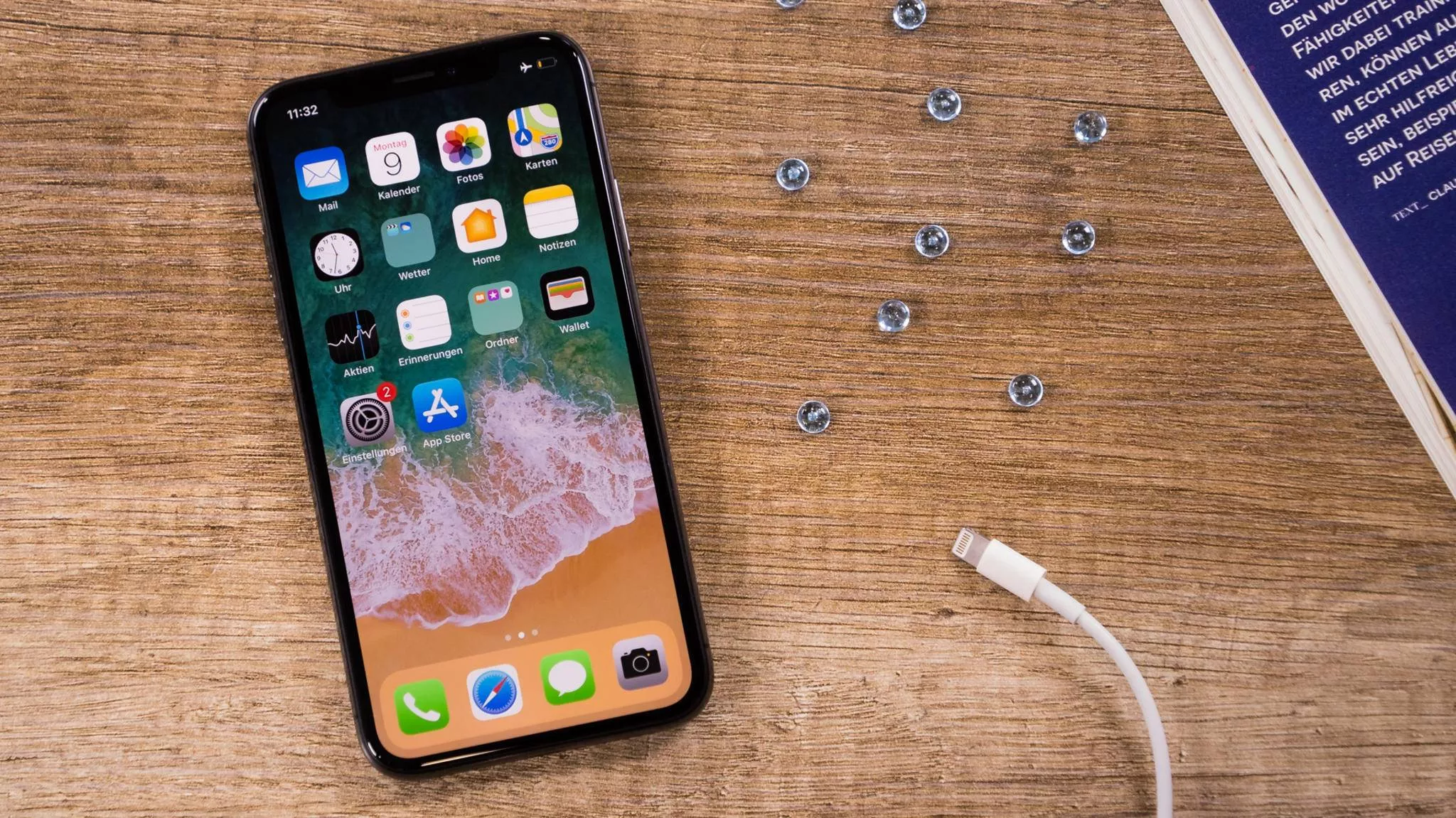
Ein iPhone auf Werkseinstellungen zurückzusetzen ist eine einfache Möglichkeit, um alle gespeicherten Daten auf dem Gerät zu löschen und es in den Zustand zu versetzen, in dem es sich befand, als es das Werk verließ. Das Zurücksetzen auf Werkseinstellungen kann hilfreich sein, wenn du beispielsweise das iPhone verkaufen oder es an jemand anderen weitergeben möchtest.
Um dein iPhone auf Werkseinstellungen zurückzusetzen, benötigst du einen PC oder Mac mit iTunes installiert. Folge diesen einfachen Schritten:
- Schließe dein iPhone über das mitgelieferte USB-Kabel an deinen PC oder Mac an.
- Öffne iTunes auf deinem Computer.
- Wähle dein iPhone aus, indem du auf das iPhone-Symbol oben links in der iTunes-Oberfläche klickst.
- Klicke auf den Tab „Übersicht“, der sich unterhalb des iPhone-Symbols befindet.
- Klicke auf den Button „iPhone wiederherstellen“.
- Bestätige die Aktion, indem du auf „Wiederherstellen“ klickst.
- iTunes beginnt jetzt damit, dein iPhone auf Werkseinstellungen zurückzusetzen. Warte, bis der Prozess abgeschlossen ist.
- Sobald der Vorgang abgeschlossen ist, wird dein iPhone neu gestartet und du wirst aufgefordert, es einzurichten, als wäre es ein neues Gerät.
Das Zurücksetzen auf Werkseinstellungen löscht alle Daten auf dem iPhone, einschließlich Fotos, Videos, Musik, Kontakte, Nachrichten und Einstellungen. Stelle daher sicher, dass du ein Backup deiner Daten erstellt hast, bevor du das iPhone auf Werkseinstellungen zurücksetzt.
Um ein Backup zu erstellen, schließe dein iPhone an deinen Computer an und öffne iTunes. Wähle dein iPhone aus und klicke auf den Tab „Übersicht“. Klicke auf den Button „Backup jetzt erstellen“, um ein Backup deiner Daten auf deinem Computer zu erstellen.
Ich hoffe, dass dir diese Anleitung dabei geholfen hat, dein iPhone auf Werkseinstellungen zurückzusetzen. Wenn du weitere Fragen hast, stehe ich dir gerne zur Verfügung.

