


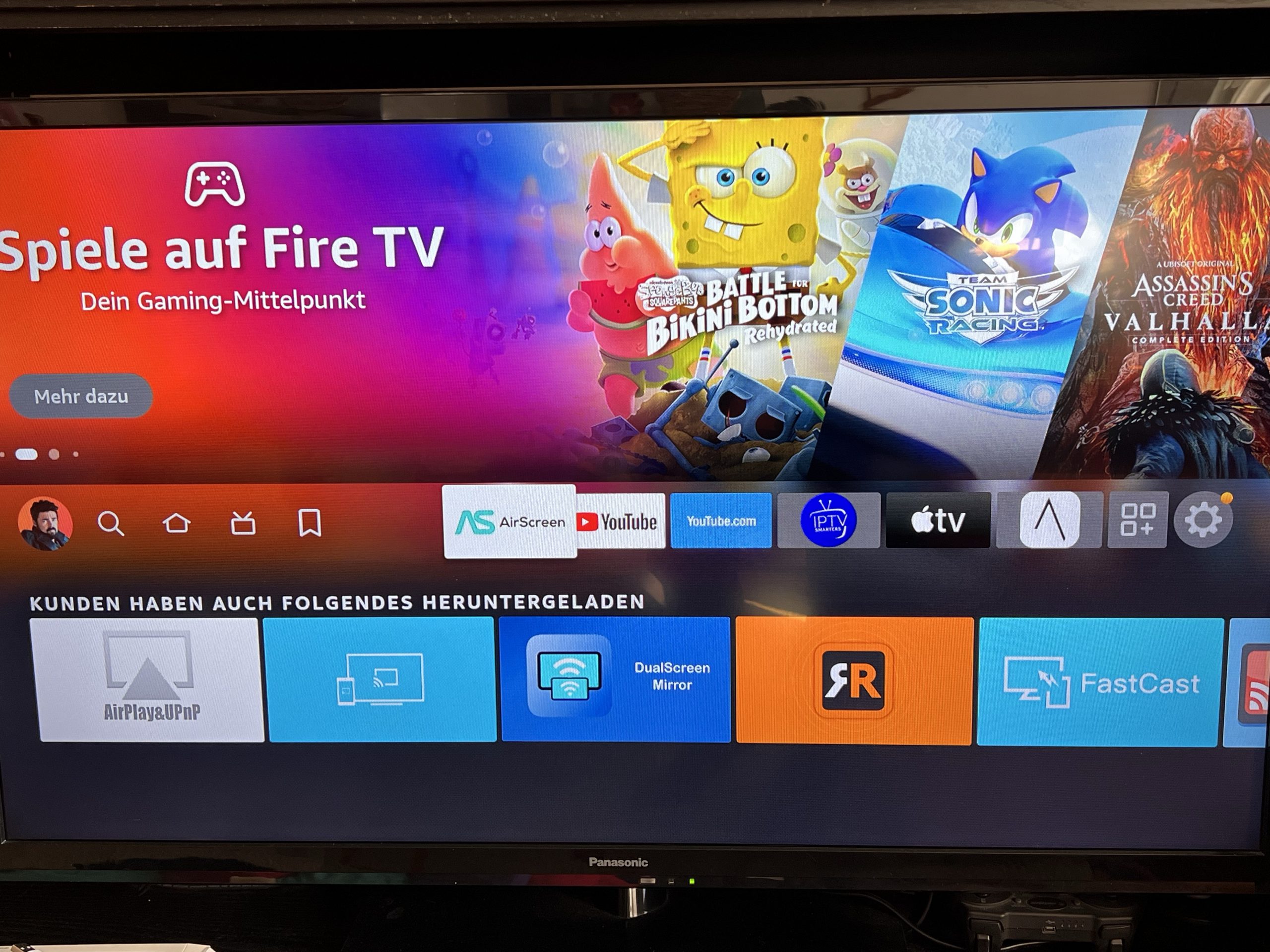
AirPlay ist eine der beliebtesten Technologien, um Medieninhalte wie Fotos, Musik und Videos von Apple-Geräten wie iPhone, iPad oder Mac auf andere kompatible Geräte wie Apple TV zu übertragen. Aber was ist, wenn Sie einen Amazon Fire TV Stick besitzen und diesen mit Ihrem Apple-Gerät verbinden möchten? Keine Sorge, es ist möglich! In diesem Artikel zeigen wir Ihnen, wie Sie AirPlay auf Ihrem Amazon Fire TV Stick nutzen können.
Schritt 1: Überprüfen Sie die Kompatibilität
Bevor Sie mit dem Setup beginnen, stellen Sie sicher, dass Ihr Amazon Fire TV Stick kompatibel ist. Stellen Sie sicher, dass Sie eine der folgenden Fire TV-Modelle haben: Fire TV Stick 4K (2018), Fire TV Stick (2. Generation oder höher) oder Fire TV (3. Generation oder höher).
Schritt 2: Installieren Sie AirPlay auf Ihrem Fire TV Stick
Gehen Sie zum Startbildschirm Ihres Fire TV Sticks und navigieren Sie zu „Einstellungen“. Suchen Sie nun nach „Mein Fire TV“ und klicken Sie darauf. Wählen Sie dann „Entwickleroptionen“ und schalten Sie die Option „ADB-Debugging“ und „Apps unbekannter Herkunft“ ein.
Jetzt müssen Sie die AirScreen-App auf Ihrem Fire TV Stick installieren. Gehen Sie dazu zum App Store auf Ihrem Fire TV Stick und suchen Sie nach „AirScreen“. Sobald Sie die App gefunden haben, klicken Sie auf „Installieren“ und warten Sie, bis die Installation abgeschlossen ist.
Schritt 3: Verbinden Sie Ihr Apple-Gerät mit dem Fire TV Stick
Sobald Sie AirScreen auf Ihrem Fire TV Stick installiert haben, können Sie Ihr Apple-Gerät damit verbinden. Gehen Sie auf Ihrem Apple-Gerät zu „Einstellungen“ und wählen Sie „AirPlay & HomeKit“. Wählen Sie dann Ihren Fire TV Stick aus der Liste der verfügbaren Geräte aus.
Sobald Sie verbunden sind, können Sie beginnen, Ihre Medieninhalte auf Ihrem Fire TV Stick zu streamen. Öffnen Sie einfach die App, die Sie streamen möchten, und drücken Sie die AirPlay-Schaltfläche. Wählen Sie Ihren Fire TV Stick aus der Liste der verfügbaren Geräte aus, und schon können Sie Ihre Inhalte auf Ihrem Fernseher genießen.
Fazit
Mit AirPlay können Sie Ihre Medieninhalte von Ihrem Apple-Gerät auf Ihrem Amazon Fire TV Stick streamen. Mit nur wenigen Schritten können Sie die AirScreen-App auf Ihrem Fire TV Stick installieren und Ihr Apple-Gerät mit Ihrem Fire TV Stick verbinden. Sobald Sie verbunden sind, können Sie beginnen, Ihre Lieblingsfilme, Fotos und Musik auf Ihrem Fernseher zu genießen.

